SpaceUsed
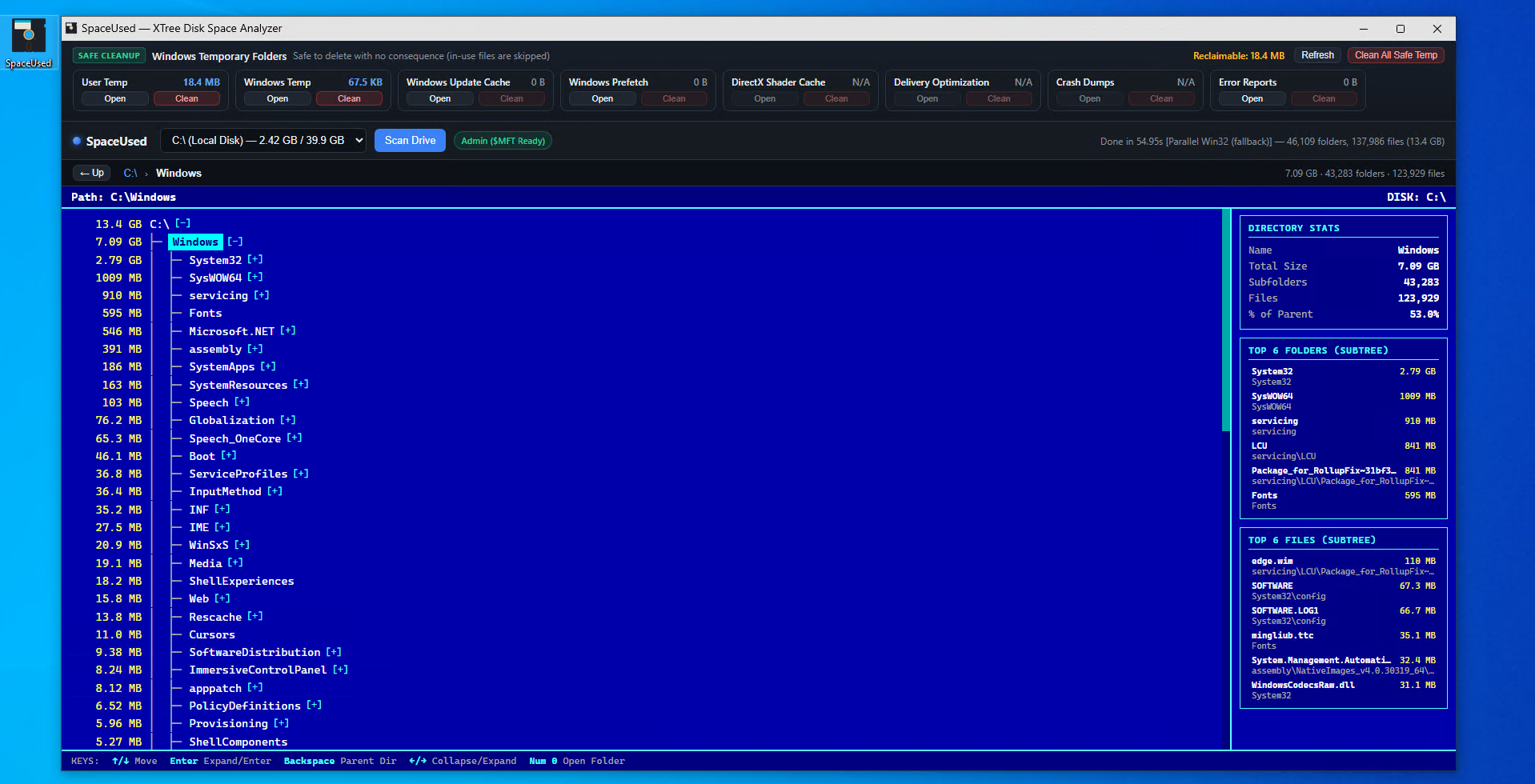
SpaceUsed is a fast Windows disk space analyzer with a classic DOS XTree-style directory browser, size-prefixed folder tree, per-directory Top 6 Folders & Files breakdown, and a built-in Safe Windows Temporary Folders cleaner.
Features
Fast Drive Scanning:
- Parallel Win32 Scan (Default): Multi-threaded directory traversal (os.scandir) that skips NTFS junctions/reparse points so C:\ is never double-counted or looped. Requires no Administrator privileges.
- Elevated NTFS MFT Mode (Optional): Click Admin MFT Mode to relaunch with UAC elevation and read the NTFS Master File Table (\\.\C:) directly from disk in 4 MB chunks—scanning an entire drive in seconds (automatically falls back to Parallel Win32 on non-NTFS drives).
Classic XTree Interface:
- Folders are prefixed with their total size and sorted largest-first at each level.
- Right-hand Directory Stats panel shows total size, subfolder count, file count, and percentage of parent.
- Top 6 Folders (Subtree) and Top 6 Files (Subtree) update live for whichever directory is highlighted, including nested subfolders.
Safe Windows Temporary Folders Bar:
- Lists common Windows temporary/cache locations at the top (User Temp, Windows Temp, Windows Update Cache, Windows Prefetch, DirectX Shader Cache, Delivery Optimization, Crash Dumps, and Error Reports) with live sizes.
- Open any temp folder in Windows Explorer or Clean its contents (with confirmation; files currently locked/in-use by Windows or running apps are safely skipped).
Usage & Controls
- Select a drive (defaults to C:\) and click Scan Drive.
- (Optional) Click Admin MFT Mode before scanning for instant NTFS MFT scanning.
- Once the scan completes, press Down Arrow (or click any folder) to start navigating the XTree.
Keyboard Shortcuts
| Key | Action |
| Up / Down Arrow | Move cursor up / down |
| Home / End | Jump to top / bottom of visible tree |
| PageUp / PageDown | Jump 15 rows up / down |
| Enter | Expand folder and enter its first subfolder |
| Backspace | Go up to parent directory |
| Right / Left Arrow | Expand / collapse folder (or jump to parent) |
| Numpad 0 (or 0 / O) | Open highlighted folder in Windows Explorer |
Mouse Controls
- Click a row to select it and view its Directory Stats, Top 6 Folders, and Top 6 Files.
- Double-click a folder to expand and enter it.
- Right-click any folder for Open Folder in Explorer, Expand / Enter Subfolders, or Copy Full Path.
- In the Top 6 panels, click any folder to jump to it in XTree, or click any file to open its containing folder in Explorer.
Posted on November 15, 2026, 8:20 pm By xuan
Categories: tech tips